Sign Up to ShoPilipinas
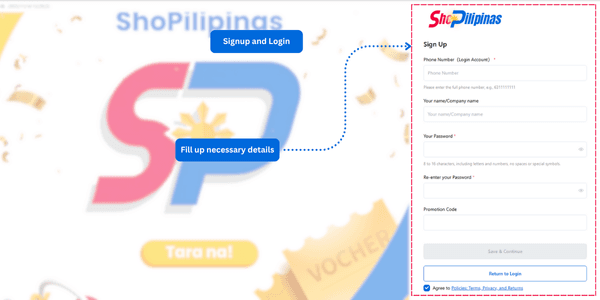
Step 1: Create Your Account
Fill in the required details to set up your account
- Phone Number – Enter an active mobile number you can access. We’ll use this to verify your identity and send important updates.
- Company Name – Provide the name of your business or organization. This helps us personalize your experience.
- Password – Choose a secure password. Use a mix of letters, numbers, and symbols for stronger protection.
- Re-enter Password – Type the same password again to confirm there are no mistakes.
- Promotion Code (Optional) – If you have a promo code, enter it here to unlock any available benefits or discounts.
Once all fields are complete, submit the form to create your account and move on to the next step.
Browse Product
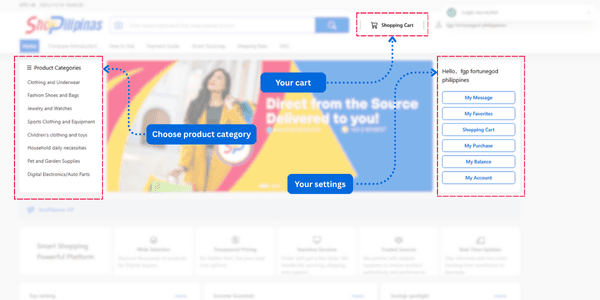
Step 2: Find Categories and Browse Products
After signing up, you’ll land on the main product page where you can explore everything we offer.
- Product Categories – Quickly find the items you need by browsing through organized categories.
- Cart – View the items you’ve added and prepare them for checkout.
- Settings – Access your personal tools such as:
- Messages – Check updates or notifications.
- Favorites – View the items you’ve saved.
- Balance – Add funds to your account. Make sure to top up your balance here before making any purchase.
- Account – Manage your personal information.
- Purchase History – Review your past orders.
Explore freely, save the items you like, and ensure you have enough balance before proceeding to checkout.
Product Variant
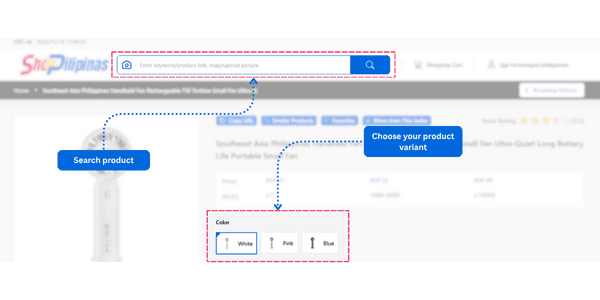
Step 3: Check Product Details and Select Variants
When you click on a product you want, you’ll be taken to its detailed page. Here you can:
- View Full Product Information – See descriptions, specifications, photos, pricing, and everything you need to know before buying.
- Choose Variants – Select the exact option you want, such as color, type, size, material, and any other available variations.
- Search for Another Product – If you want to look for something else, use the search bar to quickly find new items.
Once you’ve picked the right variant, you’re ready to add it to your cart or continue exploring.
Quantity, Notes and Buy Now
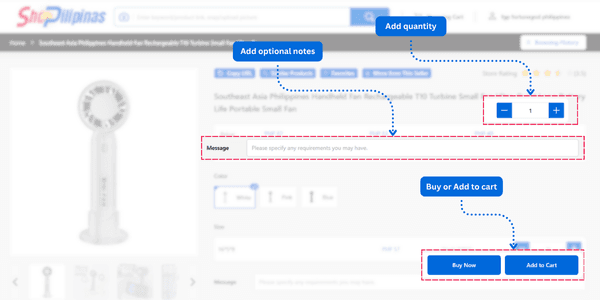
Step 4: Set Quantity and Choose How to Buy
After selecting your preferred variant, you can finalize the details before purchasing:
- Quantity – Enter how many pieces you want to order.
- Optional Note – Add a message or special instruction if needed.
Once everything is set, choose how you want to continue:
- Add to Cart – Saves the product to your cart so you can keep shopping or review multiple items before checkout.
- Buy Now – Takes you straight to the payment and shipping details page, allowing you to complete the purchase immediately.
Shipping Method
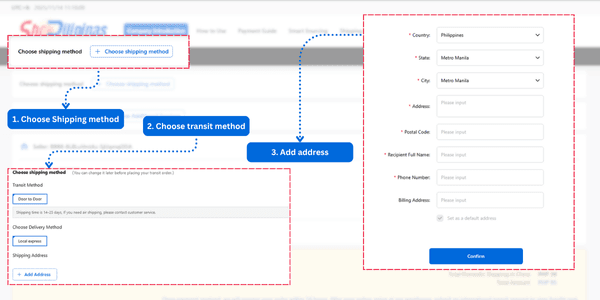
Step 5: Enter Your Shipping Details
Whether you selected Buy Now or proceeded from your Cart, you’ll now complete the delivery information:
- Choose a Shipping Method – Pick how you want your order to be delivered.
- Select a Transit Method – Decide the delivery speed or service that suits you.
- Add Your Address – Fill in all required fields with clear and accurate information to prevent delays or delivery issues.
Double-check every detail before continuing. Accurate shipping info ensures your order arrives smoothly and on time.
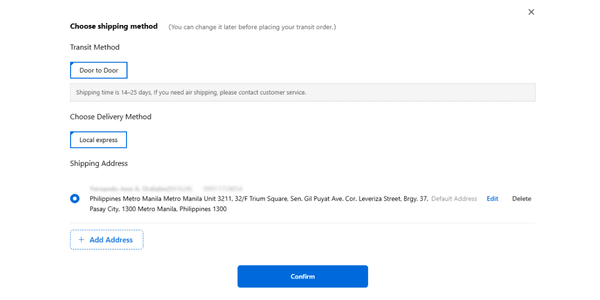
Review Shipping Method
Step 6: Review Your Information
Take a moment to review all the information carefully. Make sure everything is correct to avoid delays or issues with your order. Once confirmed, you’re ready to proceed to payment.
Review and Place the order
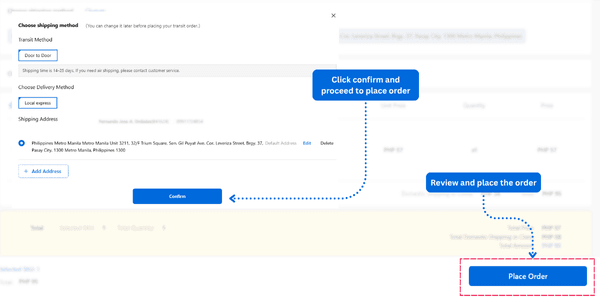
Step 7: Confirm and Place Your Order
After reviewing all your details, you’re ready to complete your purchase:
Your order will now be processed, and you’ll receive updates as it moves through delivery.
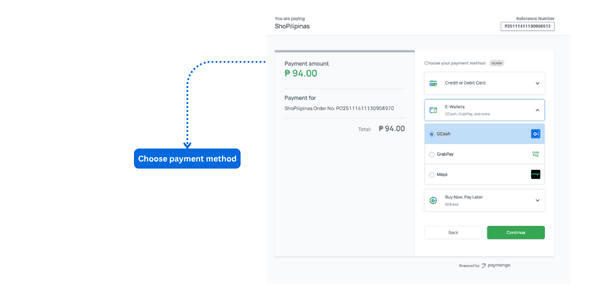
Choose payment method
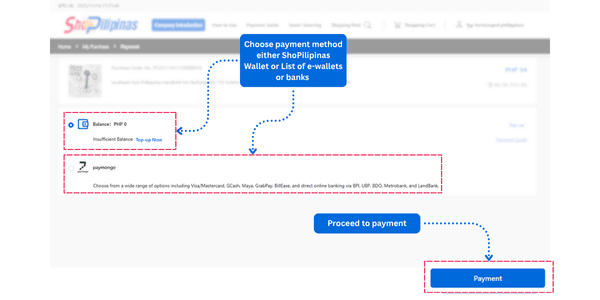
Step 8: Proceed to Payment
After placing your order, you’ll move on to the payment screen:
- Choose a Payment Method – Select how you want to pay for your order.
- ShoPilipinas Wallet – Use your wallet balance if you have sufficient funds.
- PayMongo Options – Choose from the available payment methods such as cards or supported e-wallets.
Complete the payment to finalize your purchase. Once successful, your order will be officially confirmed and prepared for processing.
Choose payment method in Paymongo
Step 9: Complete Your Payment
Your final step depends on the payment option you selected:
- ShoPilipinas Wallet – If you chose the wallet, the payment will process instantly as long as your balance is sufficient.
- PayMongo – Follow the on-screen steps. You’ll be asked to select your preferred method, such as bank payment or e-wallet. Complete the required fields to finish the transaction.
Once the payment is successful, your order is fully confirmed and will proceed to processing and delivery.
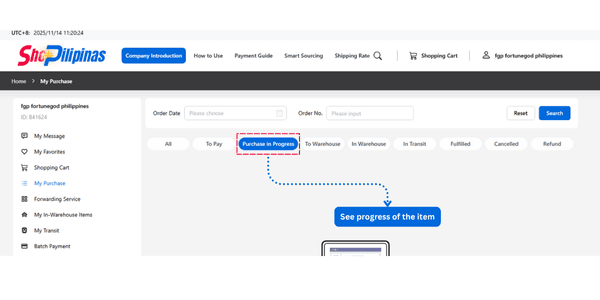
Purchase progress
Step 10: View and Track Your Orders
After completing your payment, you can now monitor your purchase:
Go to Purchase Orders to see all the items you’ve bought.
Each order will show its current status, allowing you to track the progress—from warehouse, to transit, and delivery fulfilled.
This page keeps you updated so you always know exactly where your order is.